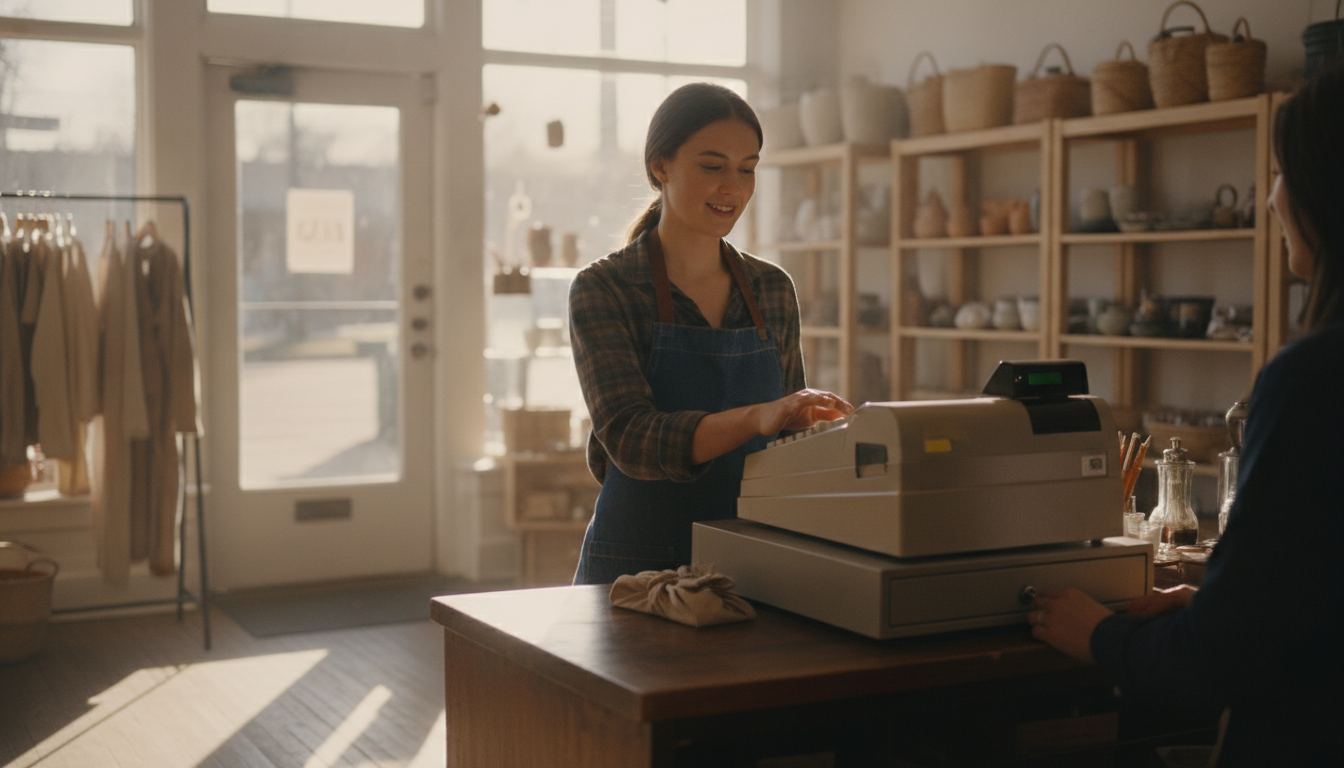
A retail pos machine should keep checkout simple, track stock accurately, and fit the way your store already works. Start with the counter jobs that cause trouble now, then compare hardware, software, processing terms, and support in writing. The right choice removes daily friction without forcing you to buy features you will not use.
Amazon currently ranks first for “retail pos machine.” That is a product listing, not a store workflow. Forbes Advisor’s August 7, 2026 POS cost guide puts hardware at $10 to $800-plus per device. A $10 magstripe reader and an $800-plus countertop are not the same quote. Ask who owns the metal, which peripherals are required, and what a replacement costs overnight.
What should a retail pos machine handle at the counter?
It should ring up common purchases quickly, accept the payment types you need, print or send receipts, and keep inventory records current. The exact feature mix depends on what you sell and how your staff works.
Start by writing down the steps in a normal sale. Include barcode scanning, quantity changes, discounts, returns, cash handling, receipt choices, and any prompts employees must see. A good setup keeps those actions close at hand instead of burying them in menus.
Specialty stores need more than a generic checkout screen. A liquor store register may need age prompts and detailed bottle inventory. A convenience store system may need fast scanning across a wide product mix. Those needs should shape the demonstration you request.
For age-restricted products, review how the system supports employee checks and compatible scanning equipment. The rules vary, so confirm your own legal duties before relying on any feature. Our guide to age verification at the counter explains what the technology can help with and where staff judgment still matters.
Which hardware belongs in the setup?
The usual setup combines a touchscreen or register, barcode scanner, receipt printer, cash drawer, and payment terminal. Your store may also need a scale, customer-facing display, handheld device, or label printer.
Compatibility matters more than appearance. Ask whether your existing scanner, drawer, printer, and network equipment can stay. Reusing dependable equipment can reduce disruption, but keeping an old peripheral is not worthwhile if it causes missed scans or frequent reconnecting.
Pay attention to the physical counter. A large screen can become an obstacle in a tight workspace. Loose cables collect dust and get pulled during busy periods. Ask to see the complete setup, including stands, power supplies, network connections, and the space needed to open the cash drawer.
Also clarify who owns each device. A low upfront cost can mean rented equipment, while a purchase may shift repair responsibility to you. Get ownership, replacement, return, and cancellation terms in writing before signing.
How should inventory tools fit your store?
Inventory software should match how products arrive, sell, and get counted. It should let employees receive stock, correct mistakes, find items, and review low inventory without creating a separate bookkeeping project.
Catalog quality is the foundation. Check how the system handles barcodes, departments, vendors, pack sizes, taxes, deposits, and products without standard codes. If your current list contains duplicates or old descriptions, plan to clean it before migration. Moving bad data into a new register preserves the problem.
Counting should also be practical on the sales floor. Look for search tools, handheld counting options, clear adjustment reasons, and reports that identify unusual changes. The inventory management overview covers the core controls that help an owner understand what is on the shelf and what needs attention.
Do not buy a complicated inventory package solely because its demonstration looks impressive. If your team will not maintain purchase records or perform regular counts, simpler software with a clear routine may produce better information.
What costs should you compare before signing?
Compare the complete operating cost, not just the register price. Hardware, software, payment processing, installation, accessories, support, replacement equipment, and cancellation terms can all affect what you actually spend.
Ask for a written schedule that separates purchased equipment from rented equipment. It should also identify recurring software charges, optional services, processing terms, dispute costs, and any minimums or compliance-related charges. Our POS system cost guide shows how to organize those items before comparing proposals.
Card processing deserves its own review. Look at how transactions are priced, what happens when a card is keyed, and whether the agreement limits your equipment choices. The processing fee guide explains the parts of a statement that owners often need to compare.
A cheaper proposal is not automatically a better fit. Paying less for a system that slows common sales or produces unreliable inventory can create more work than it removes. On the other hand, switching is unnecessary when your current register handles the store well and the written costs remain reasonable.
How can you switch without disrupting checkout?
A controlled switch starts with clean product data, tested hardware, and a clear cutover plan. Do not wait until installation day to decide which items, prices, taxes, departments, and employee permissions should move.
Ask the provider to demonstrate a sale, refund, cash transaction, receipt reprint, inventory adjustment, and end-of-day close using your expected setup. Staff should practice the common tasks before the old register is removed. Keep written instructions near the counter while the new workflow becomes familiar.
Data migration deserves close review. Confirm what will transfer, which file format is needed, and who checks the imported catalog. Sales history may be handled differently from active inventory, so decide what must remain accessible for accounting and store analysis.
Our guide to switching POS systems covers preparation and testing in more detail. If the proposal or migration plan is unclear, tell us what your counter needs before committing to new equipment.
Frequently asked questions
Do I need to replace all of my existing checkout equipment?
Not necessarily. Some scanners, printers, drawers, and network equipment may work with a new system. Ask the provider to confirm each model in writing before relying on it. Keeping compatible hardware can reduce waste, but older equipment should not be retained when it causes connection problems, slow printing, or unreliable scanning.
Can the register keep working during an internet outage?
That depends on the system and the transaction being attempted. Ask for a live demonstration of its offline behavior, including what employees see and what becomes unavailable. Confirm how sales are stored, when inventory updates, and how card transactions are handled. Do not assume that every function continues simply because the sales screen remains open.
Does ID scanning replace an employee age check?
No. Scanning can read information and support a store procedure, but employees still need to follow applicable rules and store policy. Requirements vary, and software cannot resolve every damaged, altered, expired, or unusual document. Train staff on when to stop the sale and how to handle an uncertain result.
Should I choose the system with the most features?
Choose the system that handles your real counter work clearly. Extra features have little value when employees cannot find them or owners do not maintain the required data. Build a short list from your common sales, inventory tasks, reporting needs, and equipment. Then judge each demonstration against that list instead of its longest feature page.
What should I bring to a product demonstration?
Bring examples of common products, unusual barcodes, a recent processing statement, a list of current equipment, and the tasks that frustrate your staff. Ask the presenter to perform those tasks from start to finish. A useful demonstration should show your likely workflow, not a polished sample store that operates differently from yours.